This is default featured slide 1 title

Go to Blogger edit html and find these sentences.Now replace these sentences with your own descriptions.

This is default featured slide 2 title

Go to Blogger edit html and find these sentences.Now replace these sentences with your own descriptions.

This is default featured slide 3 title

Go to Blogger edit html and find these sentences.Now replace these sentences with your own descriptions.

This is default featured slide 4 title

Go to Blogger edit html and find these sentences.Now replace these sentences with your own descriptions.

This is default featured slide 5 title

Go to Blogger edit html and find these sentences.Now replace these sentences with your own descriptions.

Monday, December 29, 2014

Apple's New App Return Policy in Europe is a Big Deal for VoiceOver Users


Recently, Apple implemented a new 14 day no questions asked return policy in many European Union (EU) nations according to 9to5mac. The new policy allows customers to receive a full refund on App Store purchases within 14 days of receipt.

While this new policy is an important safeguard for all consumers, it is a major development for App Store customers who rely on accessibility features, such as VoiceOver, in order to use their devices. VoiceOver is a built in screen reader that allows blind and visually impaired users to use iOS devices and Macs.

While browsing the App Store, it is extremely difficult for VoiceOver users to determine if the app they are interested in purchasing is accessible. This often leaves the customer playing a guessing game with their money. For example, without the return policy a VoiceOver user who wanted to purchase a $20 app would need to hope that the app was accessible with VoiceOver otherwise their $20 purchase would be useless. Even if the app is inaccessible and unusable refunds are typically not granted.

The new policy allows VoiceOver users to download apps that may or may not be accessible without the risk of wasting money on an app that is totally useless for them. If the user downloads an app that is not accessible, they can simply return the app within two weeks and receive a full refund. In effect, this allows for a two week trial period for apps which will allow users to see if the app fits their needs. For VoiceOver users within the EU this will take the guesswork out of purchasing apps.

Unfortunately, the new return policy is only available in certain EU countries and is not applicable to customers in other countries. Hopefully, Apple will extend the policy to all customers regardless of which country they are in. Until that time, users in other countries will have to hope that the apps they are downloading are accessible.

Sunday, December 28, 2014

KNFB Reader App: Amazingly Fast and Accurate


The KNFB Reader is a text recognition app that is shockingly fast. Take a picture of a newspaper article or practically any printed text and within a couple of seconds the app will be reading the text back to you. A "couple of seconds" is no exaggeration, the KNFB Reader app is that fast. For people who are visually impaired or have difficulty reading, the KNFB Reader is perfect for accessing printed text.

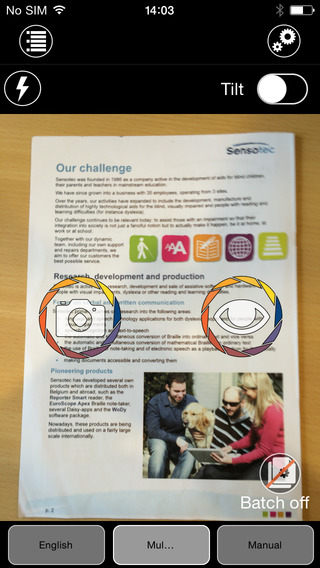
Once a document is properly framed, only one more step is necessary to start reading the document. Simply press the take picture button and within seconds the app will recognize the text within the document using optical character recognition (OCR) and begin reading it with text-to-speech. No need to crop or adjust the image, once the picture is taken the app does all the work. All recognition is done locally on the device so personal data is never transmitted over the internet.

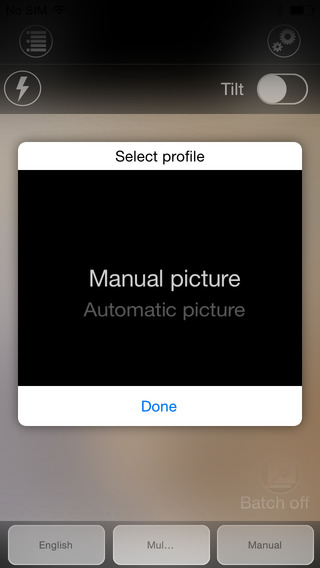
The KNFB Reader app has a number of features that help users capture images of text. For users who are blind and visually impaired the app offers a "field of view report" which offers spoken feedback to help frame the document in the view finder. This feature will let a users know how many corners of the document are within the field of view and if the document is tilted. In addition, the app offers automatic picture taking mode which will automatically snap a picture of a document when it is properly framed.  The app also includes the ability to capture multi-page documents with batch mode. The field of view feature worked well with loose paper documents, but I did not have success using the automatic capture feature with books.

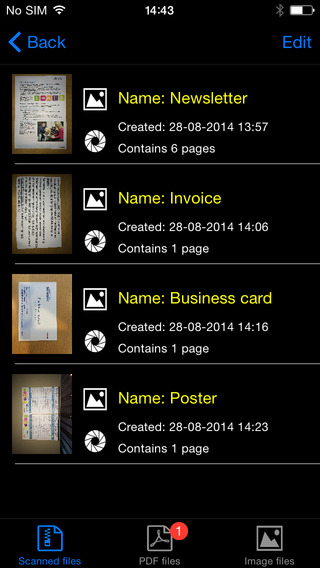
In addition to using the device's built in camera to capture images, users can also import image based PDF documents and JPG files to be recognized with the app. For example, using the "open in" feature of Google Drive will allow a user to import an image to be recognized and read with KNFB Reader.

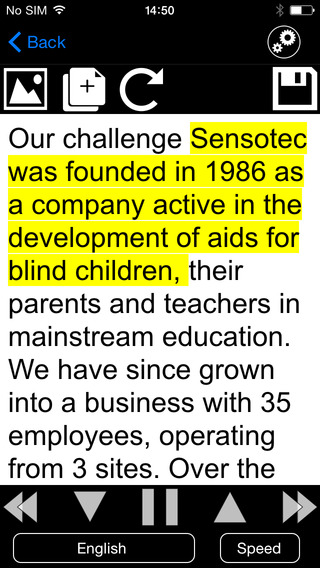
Text is can be highlighted word-by-word or line-by-line as it is being read aloud by the text-to-speech voice. Users can adjust the layout and appearance of the text and change the speaking rate of the text-to-speech voice. Only the default iOS text-to-speech voice is available, so users hoping to use another voice will have to export the text to another app. The built-in text reader also lacks the ability to highlight or annotate the document, so once again users looking for this functionality will need to export the text to a different app.

While the KNFB Reader app is faster and more accurate than competing products such as Prizmo, Prizmo does include some useful features that KNFB Reader does not. Prizmo, which is significantly less expensive, includes the ability to export PDF documents. This means a user can take a picture of a document, have the text recognized and any images on the page retained by Prizmo, so that it looks identical to the printed page. KNFB reader, by contrast strips away images, and only retains the printed text. If PDF export is an important feature to you, Prizmo may be a better option. Click here to learn more about Prizmo. 

If you are looking for a text recognition app with great speed and accuracy, I think you will be quite pleased. If The KNFB reader fits your budget, you won't be disappointed. KNFB Reader costs $100, to download the app from the App Store click here. It is compatible with the iPhone 4S and newer and the iPod touch fifth generation. Click read more below to view screen shots of the app.


Tuesday, December 23, 2014

MotionSavvy's UNI Tablet: A Break Through in Sign Language Communication


For people who use sign language to communicate, interacting with people who do not know sign language can be an enormous challenge and create barriers for people who are hearing impaired. Until now, the best alternative might have been writing out notes on a piece of paper. However, an upcoming product from a company called MotionSavvy hopes to offer a better solution.

The solution does not look like the advanced piece of assistive technology that it is, but rather looks like a thin tablet with a Leap Motion device attached to the front. The Leap Motion senses the motion of the users hand to recognize signs using multiple cameras. Once the table recognizes the signs it can display the signed phrase as text on screen or even as spoken words with text-to-speech. This allows the other person that does not know sign language to understand what is being signed. Then the other person can speak into the tablet and speech recognition technology will allow the words to appear on the screen for the hearing impaired person to read.

This technology can allow deaf and hearing impaired users to communicate with other people that do not know sign language without an interpreter or slow hand written messages. However there are some limitations that should be expected from a first generation product such as the UNI. Users will not be able to use their existing tablet with the software and will need to purchase both the Leap Motion device and accompanying Windows tablet and case through MotionSavvy. Also, the system may have difficulty interpreting the nuances of different sign language styles. Additionally only American Sign Language (ASL) will be supported initially. Luckily, MotionSavvy will include a feature to allow people to teach the device how to recognize new signs. With a feature called CrowdSign, the signs imported by one user can be shared with other users of the system. This will allow the library of recognizable signs to increase quickly provided users are willing to create and share their imported signs. However, because of the upkeep needed to maintain the CrowdSign features, users will need to pay a monthly fee to use the UNI tablet.

The MotionSavvy UNI tablet is expected to be released in early 2015. At this time, details on pricing are unclear, but MotionSavvy has said that the UNI will sell for more than $500 when released.

Monday, September 22, 2014

New in iOS 8: Hands-Free Siri and Improved Dictation


Apple's voice activated features have received some new features as part of iOS 8. Siri is a virtual voice activated personal assistant that can answer your questions, call your friends, check the weather, and much more.  Now it can  be activated hands free by saying, "Hey, Siri." Previously, users would have to press and hold the home button to activate Siri.

The new feature will allow people with physical disabilities to easily activate Siri. The hands-free activation feature does have one major caveat: the device must be plugged in and charging. Users who need or want to access this feature on- the- go can purchase a battery case to utilize this feature. It is possible that future iOS devices will not require a power source to use the "Hey, Siri" feature.

In addition, when dictating a question to Siri or dictating text into an app the recognized words appear almost instantly after being spoken. To use dictation bring up the keyboard and then press the microphone icon next to the space key. With words appearing as you speak it is easier to identify mistakes which makes the dictation process faster. Dictation can be a useful feature for people who struggle with spelling and people who have difficulty using a keyboard. These features are available for devices running iOS 8.

Saturday, September 20, 2014

New in iOS 8: Greyscale Mode

Altered image not an iOS 8 screenshot

iOS 8 includes a new greyscale mode that could benefit people with visual impairments. The new mode is included in addition to inverse color which was previously available. The new option will reduce the bright colors and possibly reduce glare to make the screen easier to see. Greyscale and inverse color can be enabled simultaneously for further visual changes. Even for people without visual impairments greyscale maybe made the screen slightly easier to view outdoors.

To enable greyscale navigate to Settings > General > Accessibility > Greyscale. Please note that the above screenshot is an altered colored screenshot.

Friday, September 19, 2014

New in iOS 8: Improved Guided Access with Timers and Touch ID Integration


Guided Access is one of the many iOS features being enhanced in iOS 8. Guided Access is used to keep a someone on a single app using  a password. For example, if you want your child to read a book and not watch a video you can lock them into the reading app, eliminating the ability to navigate to other apps. With Guided Access enabled, a child or student will need a passcode in order to enter another app. To learn more about Guided Access click here.

One of the enhancement allows users to end a Guided Access session with their finger print using Touch ID. Similar to how third-party developers can implement Touch ID authentication, Guided Access will also take advantage of finger print reading technology. Instead of entering a passcode, users with a Touch ID enabled device will be able to end the session simply by placing their finger on the Touch ID sensor. This feature will simplify the processes of ending Guided Access and potentially eliminate the frustration resulting in forgotten passcodes.

The other enhancement allows students and parents to set a time limit. After the time expires the app will not respond until the correct passcode or finger print is entered. Periodically a small message appears showing how much time is remaining. This feature could be perfect for test taking by ensuring students stop answering questions after the allotted time expires, or for setting a time limit for playing games- when the time limit is reached, the app will not respond.

To enable Guided Access navigate to Settings > General > Accessibility > Guided Access.

Thursday, September 18, 2014

New in iOS 8: Built-in Braille Keyboard for Six-Dot Input


iOS 8 includes enhancements to VoiceOver, the built-in gesture based screen reader for people with visual impairments. One of the improvements is a new built-in Braille Keyboard for Six-Dot input. The new feature is similar to the BrailleTouch app released a few years ago with one major difference; the built-in option can be used to enter text into any app directly. The option can be enabled in the VoiceOver rotor. The Braille keyboard will offer VoiceOver users who are familiar with Braille an alternative, and possibly much faster text entry method. iOS 8 will also offers third-party keyboards such as Fleksy which could also offer significantly faster text input for VoiceOver users.

Once you turn the Braille keyboard on six positions will appear on screen representing the six Braille dots. When the device is held with the screen perpendicular to the floor it automatically enters screen away mode. When using this mode the user faces the screen away allowing three fingers from each hand to contact the screen. As the user begins to type the six virtual dots automatically reposition themselves to compensate for changes in your grip. The dots can also be recalibrated by holding down the three right hand fingers and then the three left hand fingers immediately after. This positions the dots directly under your fingers.

When the device is set on the table or another flat surface the Braille keyboard enters tabletop mode. This mode would seem to be ideal for an iPad can can also be used on smaller devices. It does take some care to ensure that the keyboard does not switch between tabletop and screen away mode accidentally. In both modes typing did seem difficult on the small screen, but some practice seemed to improve typing speed. This new option allows typing with contracted or uncontracted Braille. When typing a swipe right adds a space and a swipe left deletes the last character typed. This new method of typing is very sensitive a will likely require practice before mastering. If you use this feature frequently, it maybe helpful to purchase a case that boarders the screen to avoid trying to type on the bezel.

To enable the Braille keyboard go to Settings > General > Accessibility > VoiceOver > Rotor > Braille Screen Input. Then, when VoiceOver is enabled, rotate the rotor until Braille screen input is selected. It exciting to see all the new third-party keyboard options for iOS 8, but for VoiceOver users, Apple's own Braille keyboard maybe the most exciting of all.

New in iOS 8: Start Text-To-Speech Easily with Speak Screen


iOS 8 includes some new accessibility features and many improvements to existing features. One of the new features is called Speak Screen which allows users to quickly have text on the screen spoken aloud using text-to-speech. Speak Screen is included in addition to Speak Selection which allows users to highlight text and press speak to have content read aloud.

Unlike Speak Selection, which requires text to be highlighted first, before reading the text aloud,  Speak Screen does not require users to highlight the text they wish to have spoken. Especially for longer articles or emails, this highlighting process could be time consuming and frustrating.

Speak Screen solves the problem by speaking all text on the screen with a simple two-finger swipe down from the top of the screen. After swiping down with two fingers, text starts to be read aloud with text-to-speech, and the Speak Screen menu appears on top of your current app. This menu allows you to stop and start speech, adjust the text-to-speech speaking rate, and navigate through the text being spoken.  Instead of having to re-highlight text if you want to hear a paragraph again, Speak Screen offers simple navigation buttons. The menu can also be hidden to allow full view of the screen and accessed again through a small floating button. Just like Speak Selection, Speak Screen has the option to highlight text as it is spoken, making it easier for sighted readers to follow the text as it is being spoken.

Just like all of the accessibility features in iOS 8, Speak Screen can use the Alex text-to-speech voice which many users prefer. While Alex is a very high quality text-to-speech voice beware, it takes up almost one gigabyte of storage. Speak Screen can also be activated through Siri by saying "speak the screen." To enable Speak Screen on a device with iOS 8 go to Settings > General > Accessibility > Speech and then toggle on Speak Screen. Speak Screen is only available for devices running iOS 8 or higher.

Wednesday, September 17, 2014

New in iOS 8: Vastly Improved Zoom


In previous versions of iOS, zoom was only  a simple full screen magnification. With iOS 8, Apple has vastly improved zoom with partial screen window zoom, filters, and smarter magnification options. Zoom is a vital feature for people with low vision and its new features in iOS 8 makes it even more useful.

One of the most noticeable enhancements is the ability to magnify certain areas of the screen while leaving the rest of the screen unmagnified. As opposed to full screen zoom, the zoom lens allows for more easy navigation while still allowing certain important areas to be magnified. Users can change the size of the magnified area and pan around the screen in order to magnify different areas. An option is available to add a zoom control to the screen which acts like a virtual joystick for controlling which areas of the screen are magnified.Within the magnified area, users can apply filters to make viewing easier.  The filters available are inverse colors, greyscale, low light, and greyscale inverse.


As pictured above, iOS 8 allows users to choose not to magnify the keyboard. This can make typing on software keyboards much easier while still allowing the text being entered to be enlarged. When the keyboard is magnified some keys are cut off requiring panning to type, iOS 8 eliminates this problem. Zoom also includes the ability to follow the VoiceOver cursor focus. Meaning when the VoiceOver cursor is focused on an app or button, that app or button will be enlarged in the zoom window.

These new zoom options are just one of many exciting accessibility enhancements included in iOS 8. The improved zoom will benefit many users with visual impairments and is a huge improvement over zoom in iOS 7. To enable zoom go to Settings > General > Accessibility > Zoom. For more screenshots of zoom in action click read more below.


Apple Releases iOS 8 with Major Accessibility Improvements


Today, Apple released iOS 8 the latest software update for iPhone, iPad, and iPod Touch. The new software, which is available for free, includes many new features and enhancements, including new accessibility features and tools that will allow developers to make the next generation of apps. Apple has not stood still in terms accessibility and as a result, iOS 8 is truly the most accessible and inclusive iOS version to date.

Some of the most exciting new accessibility features are included in iOS are ready to use right after updating. These features are developed by Apple, and most are found under Settings > General > Accessibility.

Speak Screen is one of the new accessibility features that allows users to quickly and easily have content on the screen read with text-to-speech with a simple two finger swipe down gesture. Unlike older versions of iOS which required users to highlight sections that they wished to be spoken, Speak Screen does not require any highlighting. Users can even ask Siri to �speak the screen� to start text-to-speech.

Apple�s highly acclaimed screen reader, VoiceOver, also received some substantial updates. Now, VoiceOver users can enter text using a system-wide virtual six-dot Braille keyboard. Zoom is also vastly improved with windowed magnification and filters. Guided Access and AssistiveTouch have seen smaller improvements.

In addition, all accessibility features that use speech will now be able to use the Alex text-to-speech voice that many Mac users enjoy. All of these features are included with the iOS 8 update. Stay tuned for in depth information about the features discussed above in the coming days and weeks.

With iOS 8, Apple has given developers tools to make the next generation of great apps. Hopefully, assistive app makers will be able to take advantage of these new features to help people with various needs. Developers can now make system wide keyboard apps. iOS keyboards will now be able to enter text into any app if the developer updates the app for iOS 8. For example, Fleksy and SwiftKey are expect to receive an update shortly to enable text entry into any app. Developers can also add the ability to unlock their app using Touch IDfinger print recognition for devices with Touch ID. Lastly, developers can create extensions to allow their app to perform functions within other apps. For example, a translation extension could be used within Safari to eliminate the need to switch apps.

These features open up a whole new world to app developers and it will be exciting to use some of the new apps that take advantage of these new developer features. While some apps have already been updated to take advantage of the new developer features in iOS, many have not been. Check back to read about some apps that are taking advantage of these new developer features in ways that can help people with disabilities.

iOS 8 is a free update that you can download now. Stay tuned to the Assistive Technology Blog to learn more about the new included accessibility features and about apps that take advantage of the new developer features.

Saturday, September 6, 2014

What a Larger Screen iPhone Means for Accessibility


The general consensus is that Apple will introduce new iPhones with larger screens in a few days. With many people with disabilities using Apple's flagship device for their accessibility needs a change can have a large impact on users. From a software prospective iOS 8 will offer many accessibility improvements, but hardware is also an important aspect of accessibility. The larger screen will certainly benefit some users with special needs, but may also cause problems for others.

Users with low vision may benefit the most from the larger viewing area. On current iPhones, with large text enabled, only a small amount of text is able to fit on screen. A larger screen will allow more text to fit on screen requiring less scrolling for users who prefer or require large text. The large screen will also give VoiceOver users more space to use three or four finger gestures.


On the other hand a larger screen iPhone may pose a challenge. Users with physical challenges may have a difficult time reaching all the controls. Also users who prefer using their phone in one hand and users who can only use one hand to operate their phone may find it difficult access all areas of the screen. It is possible that Apple will come up with a software solution to these possible challenges, making one handed use a breeze. 

When Apple introduced the iPhone 5 it claimed that the larger screen was a perfect size for one handed, use so it will be interesting to see how the next iPhone is marketed.

People who use Apple devices as assistive devices should be excited about the company's upcoming announcement. Regardless of any hardware changes Apple's iOS 8 includes unmatched accessibility features for people with a variety of needs. The potentially larger screen size will likely benefit most users. The benefits and trade-offs of larger screen phones has been explored with Android phones for years, and hopefully Apple has been able to iron out any lasting challenges. Aside from the form factor, Apple may introduce new software or hardware features that impact people with disabilities at their event. Stay tuned for information about how Apple's announcements impact accessibility.

Wednesday, August 20, 2014

Back-to-School Guide for Dyslexic Students: Apps and More (Repost)

Credit: Apple

Note: this post originally appeared last year and with back-to-school season in full swing these apps and tools can still provide a huge benefits for dyslexic students. Some updates have been made.

With the school year fast approaching (or already in full swing) here are my favorite apps and products for accessibility. Hopefully these apps and products will help make the school year successful for those needing assistive technology to support their reading and writing. This list is geared toward students with dyslexia but many of the apps and products can also benefit other students. To learn more about any of these products or apps click on the accompanying link.

Kurzweil 3000

Kurzweil 3000 is a versatile reading and writing program for Mac and PC. With Kurzweil students can read scanned and digital documents with high quality text-to-speech and synchronized highlighting. This gives students with reading difficulty the ability to listen to text and improve comprehension. Kurzweil also allows students to annotate documents using text notes, audio notes, highlighting, and circling. Test taking is also a breeze with Kurzweil thanks to its �fill in the blanks� function which allows students to answer test question directly on the digital document. Kurzweil 3000 is not only for reading help but also includes a number of helpful writing features such as mind mapping and word prediction. Click here to learn more about Kurzweil 3000.

Bookshare

Bookshare is an essential service for people with print disabilities. Bookshare.org provides accessible e-books for qualified students. Members can choose from over 200,000 downloadable titles including many textbooks. Bookshare books can be downloaded in a DAISY format for use with text-to-speech software or in a Braille format. Similar to Kurzweil, the combination of text-to-speech and highlighted text can greatly speed up and reading and increase comprehension for qualifying students. Thanks to a grant from the United States Department of Education Bookshare is free to U.S. students.  Click here to learn more about Bookshare.

Learning Ally

Learning Ally is another provider of accessible books for the blind and dyslexic. Learning Ally mostly provides human narrated audio books for their members. Learning Ally is also expanding to provide �VOICEtext� books which include human narration and highlighted text. The highlighting of �VOICEtext� books is not word by word like in Bookshare and Kurzweil, but rather is paragraph by paragraph. Learning Ally books can be read on iOS and Android devices using the Learning Ally Audio app. Click here to learn more about Learning Ally.

Click read more below for more great apps and products.

Voice Dream Reader

Voice Dream Reader is an amazing text-to-speech app for iOS. The app allows students to input text from the web, clipboard, Google Drive, Dropbox, Evernote, Project Gutenberg, Bookshare, and more. Once you have loaded your text into Voice Dream Reader you can have it read with a number of text-to-speech voices which are available at an additional cost. Voice Dream Reader also allows students to customize the look of their text. The app also includes highlighting and note taking features. Voice Dream Reader is perfect for reading Bookshare books on the go. These features are just the start; to learn all about Voice Dream Reader click here or click here to download from the App Store for $9.99.

Khan Academy

Khan Academy is a fantastic free services that provides video tutorials and reviews for many subjects. Videos walk students through difficult concepts step-by-step in a way that is easy to understand and follow. From microeconomics to basic algebra and much more Khan Academy has tons of content. You can use Khan Academy to learn new concepts or reinforce subjects tough in school. At the end of many lessons students can take a short quiz to help them determine if they are understanding the content being introduced. Khan Academy can also be used on mobile devices to on the go learning. Check out Khan Academy at khanacademy.org.

Prizmo

Prizmo is an optical character recognition (OCR) app for the iPhone, iPad, and iPod Touch. The app gives students the ability to take a picture of a text documents and have it read back to them using text-to-speech in seconds. So if students comes across a document that they can�t read they can use Prizmo to quickly take a picture and have it read back to them. Prizmo can also act as a portable scanner that can convert printed document into a digital PDF format. Click here to read a full review of Prizmo or click here to download Prizmo.

Quizlet

Quizlet is a virtual flashcard service on the web and for iOS devices and Android devices. The Quizlet app for iOS includes text-to-speech which can read all text on the flash cards. If you use a popular vocabulary book or textbook it is likely that another Quizlet user has already create a flashcard set for that book. Using the search function students can access these flashcards created by other Quizlet users. This gives students all the benefits of studying from flashcards without the hassle of creating them. To download Quizlet from the App Store click here or click here to download from Google PlayClick here to learn more about Quizlet.

Inspiration Maps

Inspiration Maps is a mind mapping tool for the iPad. Inspiration Maps documents are compatible with Inspiration documents created using a computer. Inspiration Maps helps students organize their thoughts in a graphical format. The app also includes many pre-made templates set up for specific subject. Click here to read the full review of Inspiration Maps. To download Inspiration Maps click here.

Livescribe Sky Wifi Smartpen


The Sky Wifi Smartpen from Livescribe is a computerized pen designed for note taking. With the Sky Wifi Smartpen students can take notes on specialized notebook paper and have the written notes synchronized with audio recorded from class. The synchronized audio and written notes help students to review and fill in gaps of information that they may have missed while trying to quickly record information. The Sky Smartpen also automatically and wirelessly synchronizes notes to Evernote. Another useful feature of the Smartpen is the ability of one assigned note taker to wirelessly transmit digital notes and audio recordings to students who need notes provided. Using the Smartpen to provide notes to multiple students removes the delays caused by copying and carbon paper. Click here to learn more.

Monday, August 11, 2014

Indoor Navigation System Will Soon Guide Blind Passengers at SFO


Imagine how difficult it would be to navigate a bustling airport terminal as a person with a visual impairment. Navigating security, finding baggage check, and finding the correct gate all while trying to make a last minute flight is daunting for even the most seasoned travelers. San Francisco International Airport (SFO) will soon implement a system to help guide blind and visually impaired travelers from curb to gate. Starting with Terminal 2 this fall, the airport will install some 500 iBeacons for a trial. Current solutions such as GPS do not work well indoors because they are unable to provide precise location information, but beacons allow more precise locationa. When a user with the indoor navigation app walks by a beacon it communicates with the user's smartphone and transmits the location. With the location information sent from the beacon, the app can then guide users to restrooms, restaurants, boarding gates, baggage claims, and even charging stations. Initially the app will only run on iOS devices, but Android devices will likely follow. The system runs off Bluetooth technology which should have minimal impact on battery life. For blind users, points of interest and navigation instructions are read aloud using VoiceOver.

If the trial in Terminal 2 is successful, it is likely that the program will expand to more terminals and more airports. This system, powered by a company called indoo.rs, is a promising development for indoor navigation. In the near future, it is conceivable that similar systems will help people with visual impairments navigate shopping malls, schools, or hospitals. The technology will also benefit sighted users who have trouble finding locations in the vast terminal. If your traveling through SFO Terminal 2 this fall give it a try.

Saturday, August 9, 2014

Redbox to Make Some Kiosks Accessible to the Blind


Popular video rental service Redbox agreed in a settlement to make 4,000 of their 35,900 kiosks located in California accessible to people who are blind or visually impaired. The service, which is commonly found in supermarkets and other public areas, is inaccessible to blind or visually impaired users. As part of the agreement, Redbox agreed to add headphone jacks, text-to-speech output, and tactile keyboards to kiosks. The roll-out of accessible video rental boxes will be gradual and is planed to take longer than two years. In the interim, Redbox has also agreed to provide phone support to help blind customers navigate the rental process. It is not clear if Redbox plans to add more DVDs with audio descriptions to benefit its new larger customer base of visually impaired users, but such a plan would seem to make sense. The settlement deal will inevitably increase Redbox's potential customer base by providing access to more people with disabilities. Unfortunately, the settlement seems to only cover a small fraction of Redbox kiosk in California. Hopefully, other kiosk companies will make their services accessible as well.