This is default featured slide 1 title

Go to Blogger edit html and find these sentences.Now replace these sentences with your own descriptions.

This is default featured slide 2 title

Go to Blogger edit html and find these sentences.Now replace these sentences with your own descriptions.

This is default featured slide 3 title

Go to Blogger edit html and find these sentences.Now replace these sentences with your own descriptions.

This is default featured slide 4 title

Go to Blogger edit html and find these sentences.Now replace these sentences with your own descriptions.

This is default featured slide 5 title

Go to Blogger edit html and find these sentences.Now replace these sentences with your own descriptions.

Showing posts with label dyslexia. Show all posts

Monday, February 15, 2016

New Add-On for OneNote Benefits Students with Dyslexia


Microsoft OneNote Icon
Microsoft recently made a new add-on available for its OneNote software which aims to help students with dyslexia. The add-on works within Microsoft's note taking software and is currently available to download as a beta. Once installed, a new tab appears which gives users the option to read content using text-to-speech or dictate using speech-to-text. While both of the features have been available before it is nice to have a free option that can be used directly within OneNote: an application that many schools and parents already have installed as part of the Microsoft Office suite.


The text-to-speech reader mode is called "immersive reading mode" and includes some handy features. When activated the reader fills the entire screen with text from your OneNote notebook. While reading text is highlighted as it is read aloud. Users have the option to change the background color and text size in order to create a more comfortable reading experience. The add-on also includes the ability to highlight nouns, verbs, and adjectives in different colors; a feature that could be helpful for younger students. Microsoft even includes the ability for users to break words up into syllables.

It is exciting to see the fruits of Microsoft's enhanced accessibility initiatives. While the new features are not novel they seem easy to learn. Since the "Learning Tools" are free for OneNote users and easy to learn they may prove to be a great starting point for people new to assistive technology. Microsoft seems to be increasing their focus on accessibility. Recently, the company announced a new Chief Accessibility Officer and a reorganization of accessibility teams. Hopefully, with the new reorganization, "Learning Tools" is just the beginning of Microsoft's accessibility improvements.

The "Learning Tools" add-on available as a free download for Windows. Click here to learn more and download the add-on.

Friday, January 9, 2015

Keeble Keyboard for iPad: Flexible Text Input for Users with Special Needs


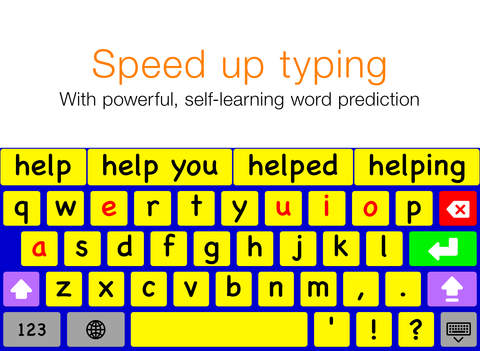
Keeble is a virtual keyboard for iPad made by AssistiveWare. The app is only available in English for iPads running iOS 8 and above. As a result of new features available in iOS 8 the Keeble keyboard can be used in almost every app on the iPad including mail, Safari, and messages. Keeble gives users a number of customization options to make text input easier for users with special needs such as motor challenges, dyslexia, and other disabilities.

One option available is the ability to change the appearance of the keyboard. Users can change the color of the keyboard which could be helpful for users with visual impairments. The higher contrast colors can be more easily seen compared to the white and gray colors of the default iOS keyboard. The layout can be change from a QWERTY layout to an ABC layout if desired.


Keeble also includes word predication to speed up typing; especially for Switch Control users. The word predication features is slightly more advanced than iOS 8's built-in word prediction. Keeble allows users to change the number of predictions offered above the three offered by the default iOS 8 keyboard.

Keeble also allows users to change how the keys respond to taps and presses. This is especially useful for users with motor challenges that may cause accidental taps or presses on unwanted keys. Hold duration can be set to change how long a key must be held before that character is entered. With this option enabled, quick accidental taps will not be registered. Additionally, the backspace repeat can be customized to avoid accidentally deleting text. A "select on release" option is also available which will enter text on release of a key instead when the key is pressed.

The last customization option allows users to turn on spoken feedback of the text they type. Feedback can be given letter by letter, word by word, and/or sentence by sentence. This feature allows people with dyslexia or poor spellers to confirm that what they words they think entered are the words that they hear being spoken back to them using text-to-speech. While this feature is useful it can only be enabled and disabled via the apps settings. If there was an option to turn on and off auditory feedback directly, it would be much easier to access the feature when needed and disable the feature when not needed. Users can totally turn off the iPad's speakers but this will also mute all other audio output. There is space on the bottom right of the number and symbol entry keyboard where quick access to this setting could be added.

The Keeble app costs $15 on the App Store. To download the app click here. Click read more below to view screenshots of the Keeble keyboard.